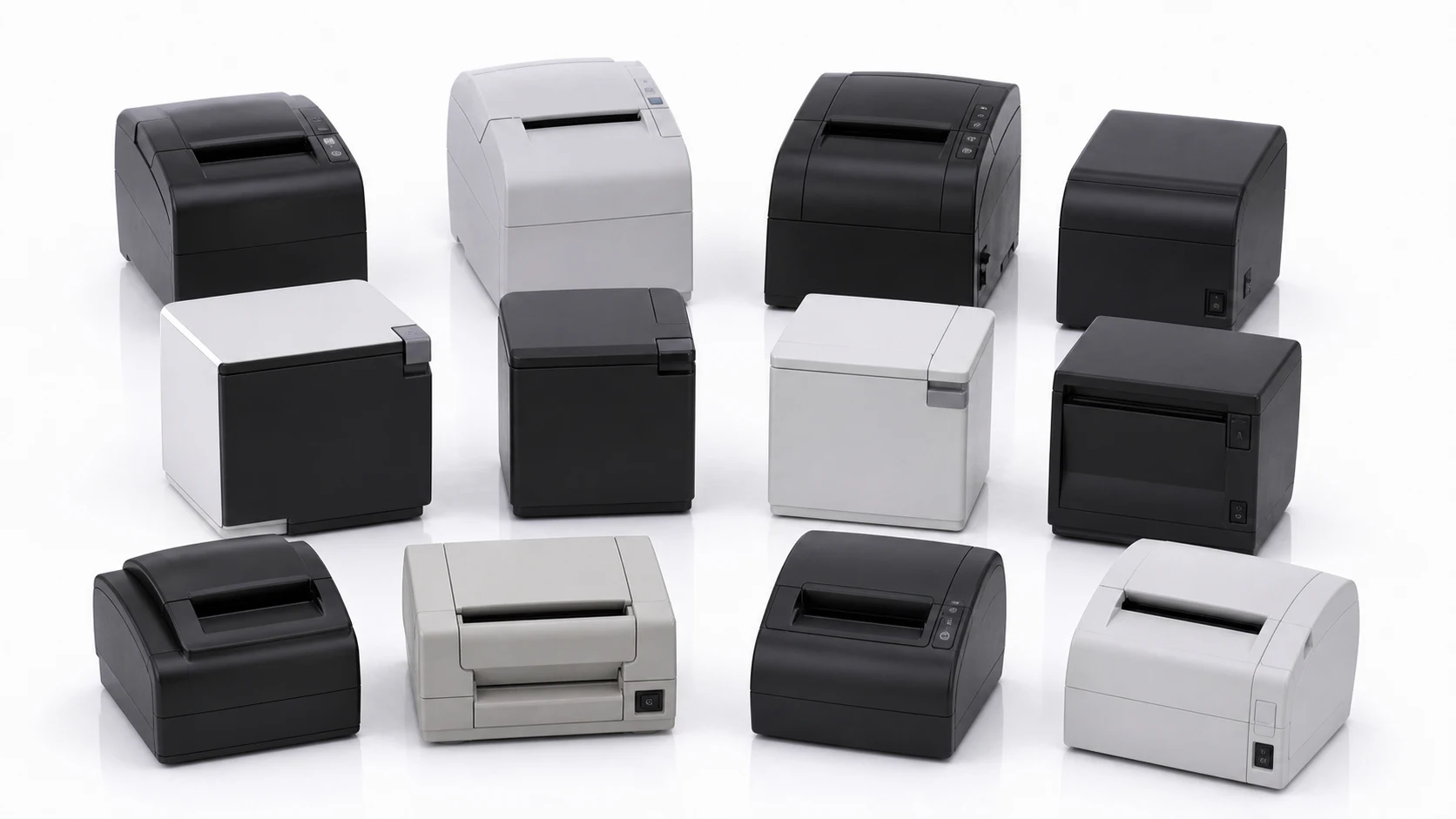
Short answer: you can almost certainly keep using the receipt or label printer you already have. Receipt Camera® isn’t locked to a specific piece of hardware. Connect a standard printer over USB, Bluetooth, or network, and the app recognizes a wide range of them and prints right away.
Connections: USB, Bluetooth, and network, all supported
All three connection methods work.
- USB: a direct cable connection. Stable, with minimal lag.
- Bluetooth: wireless. No cable means more freedom in where you place the printer.
- Network: put the printer on the same network to connect. You can place it anywhere in the venue.
Two things work differently on iPhone and iPad. iOS blocks USB connections at the OS security level, so you connect over Bluetooth or network only.
On iOS the officially supported models are also a fixed list: the series below, which have cleared Apple’s MFi certification.
| Brand | Series |
|---|---|
| EPSON | TM series |
| Brother | QL, TD, and RJ series |
The Android habit of “just plug it in and see” does not carry over, so if you plan to run on iPhone or iPad, check this list before you pick a printer.
Connecting over USB? Get an OTG cable. Most tablets only have one USB port. Plugging in the printer takes over the charging port, so for a venue running all day you need an OTG 2-in-1 cable that carries power and data at the same time.
It looks like the one below. A single USB-C plug goes into the tablet and splits into two: USB-A for the printer and USB-C for charging, so the tablet keeps charging with the printer attached.
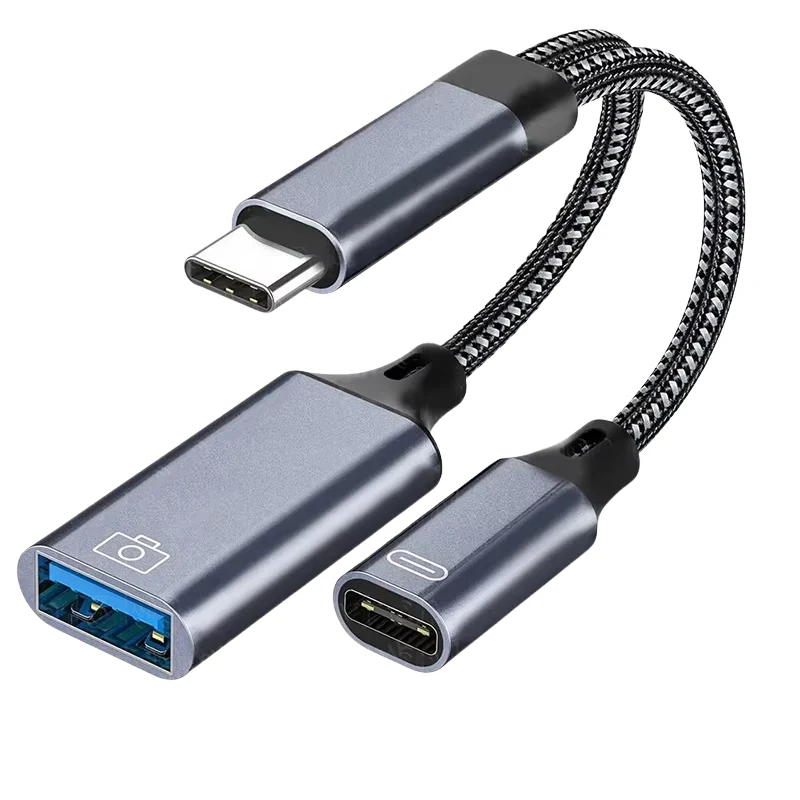
They are easy to find at any online shop, and AliExpress or Amazon both carry them if you are ordering from overseas. Search “OTG 2 in 1 cable.” No special spec is needed, just match the connector your tablet uses (usually USB-C).
Officially supported brands
These brands connect through a dedicated driver for the best print quality.
| Brand | Connection | Supported models |
|---|---|---|
| Epson | USB, Bluetooth, network | TM series receipt printers (TM-m30II, TM-m30III, and others) |
| Brother | USB, Bluetooth, network | QL series label printers (QL-800 and others) |
| SEWOO | USB, Bluetooth, network | SLK series receipt printers. Bixolon and Star series are recognized the same way |
| SAM4S | USB, Bluetooth, network | S HCUBE and other receipt printers |
| Bixolon | USB, Bluetooth, network | SRP/SLP series receipt and label printers |
Epson printers run on a dedicated control driver called ePOS2, and a network connection lets you place the printer anywhere in the venue. Brother label printers let you choose the paper type (auto, black and white, or black and red), which fits label-sticker printing especially well.
Frequently-used brands not in the table above, like SPRT and Xprinter, also connect fine through automatic recognition.
Print quality does vary with the printer itself, though. Epson and Brother deliver proven, consistent quality. Other brands span a wide range from budget to high-end models, so quality can vary more. Worth keeping in mind if print quality matters to your brand.
What printer does Brief Company’s own hardware use
If you’d rather buy a finished setup than source a printer yourself, Brief Company’s lineup already ships with a tested pairing.
- PRO line (PRO, built-in, wall-mount): a 203DPI Epson receipt printer
- PRO+ line (PRO+, hybrid): a 300DPI Brother label printer
- MINI: a 203DPI EPSON receipt printer
Each is a combination already inside the supported-brand list above, tuned in advance, so there’s no extra setup to do.
What if your printer isn’t on the list
Standard ESC/POS, ZPL, and TSPL printers from brands like Star Micronics, Citizen, Zebra (label), TSC (label), Custom, and Seiko usually get recognized automatically and print without appearing in the table above. If you already own a printer, just try connecting it. USB, Bluetooth, or network, then hit refresh if it doesn’t show up right away.
If it still doesn’t work, or you want to confirm optimal compatibility for a specific model, email the model name to [email protected]. The team reviews it and adds it to the supported list.
Printing from multiple printers at once
You can also set up several printers at an event and print to all of them from a single shot. Turn on output for each printer you want to use, and they’ll all fire together. This is an Extended-subscription feature, useful for a wedding with a lot of guests or an event running multiple booths at once.
Advanced print controls
Once a printer is connected, extra controls for fine-tuning image quality can appear depending on the model. Only the controls a given printer actually supports show up, so what you see varies device to device.
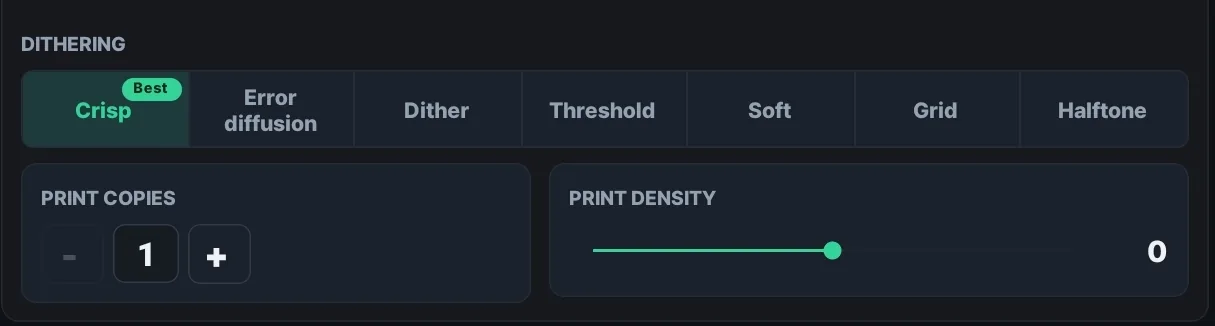
Print density is easy to adjust on any connected printer, regardless of brand. It’s a thermal-density slider from -50 to +50 in steps of 5. Turn it up if the print looks too light, turn it down if it’s too dark or smudging. Dithering is how the app renders a photo’s gray tones as a dot pattern, and each printer has its own optimized dithering option tuned for that model, which shapes how much tonal gradation and texture a portrait keeps. When you connect a new printer, it’s worth running a test print and dialing in these two settings for your venue’s lighting and paper first.
On supported models, a 300x600dpi high-resolution mode prints more sharply, though some label printers only allow it when the paper type is set to black and white. Brother label printers also expose the paper type setting (auto, black and white, black and red), and some models add print quality and cutting options too.
Checklist for connecting a new printer
- Connect over USB, Bluetooth, or network, and hit refresh if it doesn’t show up in the list.
- Connecting over USB: bring an OTG cable that supports charging and data transfer at the same time.
- Setting up at a new venue: confirm the printer status reads “ready,” and run one test print to check it.
- On a label printer, set the paper type (auto, black and white, or black and red) to match what you’re using.
- For a large event, consider turning on multi-printer output (Extended subscription).
Try it now
- Install: get Receipt Camera+ free on Google Play or the App Store. Android, iPhone, and iPad are all supported.
- Guide: printer connection and output settings are covered in detail at receiptcamera.net/tutorial.
If you’re weighing a finished setup or checking compatibility with a specific printer, use the inquiry form below and the Brief Company team will follow up with an overseas quote or a partnership and distribution conversation.